Tuesday, 18 October 2016

Liferay DXP/Liferay 7: embed web content in custom theme via ftl file

Want to add fix content via custom ftl template in Liferay 7/DXP.

Below is the sample code,

Code to embed web content in theme :

<#assign VOID = freeMarkerPortletPreferences.setValue("portletSetupPortletDecoratorId", "barebone") />
<#assign theme_groupID = htmlUtil.escape(theme_display.getCompanyGroupId()?string) />
<#assign VOID = freeMarkerPortletPreferences.setValue("groupId", '${group_id}') />
<#assign VOID = freeMarkerPortletPreferences.setValue("articleId", "yourarticleid") />


        <@liferay_portlet["runtime"]
        defaultPreferences="${freeMarkerPortletPreferences}"
        portletProviderAction=portletProviderAction.VIEW
        instanceId="footercontent"
        portletName="com_liferay_journal_content_web_portlet_JournalContentPortlet" />
        ${freeMarkerPortletPreferences.reset()}
Make sure you provide the groupId of the site in which you have created web content.

Thursday, 2 April 2015

Customize routing of logs + Liferay

In Liferay sometimes we do have some requirements  to route some particular logs to particular folder in particular file.

In liferay we can do that easily without any code change.Liferay provide log4j ext mechanism just to do this kind of stuff.

 When Liferay starts, it reads log4j configuration from "liferay-portal-6.1.20\tomcat-7.0.27\webapps\ROOT\WEB-INF\classes\META-INF"

So as a first step we have to put "portal-log4j-ext.xml" file in above location.

But wait ...before that ;),
 We are using portal-log4j-ext.xml to follow liferay best development processes.You can directly change the portal-log4j.xml but that is not the right way.You can find that file liferay source code in portal implementation package or in portal-impl.jar.

All the routing configuration of logs are written in this file.If you open it than you'll realize how liferay is managing those logs with particular file name in particular folder.

Now lets see the content of this default file provide by Liferay OOB.

 <?xml version="1.0"?>  
 <!DOCTYPE log4j:configuration SYSTEM "log4j.dtd">  
 <log4j:configuration xmlns:log4j="http://jakarta.apache.org/log4j/">  
      <appender name="CONSOLE" class="org.apache.log4j.ConsoleAppender">  
           <layout class="org.apache.log4j.PatternLayout">  
                <param name="ConversionPattern" value="%d{ABSOLUTE} %-5p [%c{1}:%L] %m%n" />  
           </layout>  
      </appender>  
      
      <appender name="FILE" class="org.apache.log4j.rolling.RollingFileAppender">  
           <rollingPolicy class="org.apache.log4j.rolling.TimeBasedRollingPolicy">  
                <param name="FileNamePattern" value="@liferay.home@/logs/liferay.%d{yyyy-MM-dd}.log" />  
           </rollingPolicy>  
           <layout class="org.apache.log4j.PatternLayout">  
                <param name="ConversionPattern" value="%d{ABSOLUTE} %-5p [%c{1}:%L] %m%n" />  
           </layout>  
      </appender>  
      <category name="com.ecyrd.jspwiki">  
           <priority value="ERROR" />  
      </category>  
      <category name="com.germinus.easyconf">  
           <priority value="ERROR" />  
      </category>  
      <category name="com.liferay">  
           <priority value="ERROR" />  
      </category>  
      <category name="com.liferay.jdbc">  
           <priority value="ERROR" />  
      </category>  
      
      //removed //;)too long
      <root>  
           <priority value="INFO" />  
           <appender-ref ref="CONSOLE" />  
           <appender-ref ref="FILE" />   
      </root>  
 </log4j:configuration> 

If you want your rule manipulate by liferay then create "portal-log4j-ext.xml" and put that file in "liferay-portal-6.1.20\tomcat-7.0.27\webapps\ROOT\WEB-INF\classes\META-INF".

Now if you want to add your rule like, logs having a string "properties"  in it that should go to another folder name "ExceptionLog" and file name must be "1.log."

So for that you have to add below tag to "portal-log4j-ext.xml" parallel to other appender tag and also put a entry in root tag.


 <appender name="FILE_MINE" class="org.apache.log4j.RollingFileAppender">   
    <param name="maxFileSize" value="10000kb" />   
    <param name="maxBackupIndex" value="20" />   
    <param name="file" value="@liferay.home@/ExceptionLog/1.log" />   
       <layout class="org.apache.log4j.PatternLayout">   
    <param name="ConversionPattern" value="%d{ABSOLUTE} %-5p [%c{1}:%L] %m%n"/>   
    </layout>   
    <filter class="org.apache.log4j.varia.StringMatchFilter">   
         <param name="StringToMatch" value="properties" />   
         <param name="AcceptOnMatch" value="true" />   
        </filter>   
  </appender>   

For more information for filters as I have added to this snippet you can explore and make very useful rules by visiting below link.
Log4j Filters

Please check the version of the log4j before using the filters some may not be available, if you are using older version of log4j.

GOOD DAY...:)


Thursday, 10 April 2014

Liferay 6.2 + Sentiment analysis with Alchemy API

Hi Guys,

In this era of IT industries transforming words into knowledge is much more useful and alchemy API is just the right thing to do these things and many more.

This post is just of an overview or you can say just a meet up what exactly Alchemy API is and how does it work.

Now you can easily perform sentiment analysis, keyword extraction, entity extraction, image tagging and much more on the massive volumes of web pages, documents, tweets and photos produced every second with Alchemy API.

In this post we are going to do sentiment analysis of the blog entry written in liferay sites and it will give xml output for each blog entry on console. You can also use search container or any document generator API for listing out the result.

I am providing you very basic and raw example.

Lets get started...

1) First of all you have to get register key for your application in which you are using this particular API.
You can get free API key here.

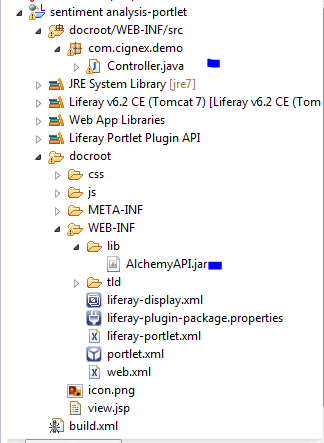
2) Create one simple MVC portlet as shown in below image.


3) Now download Alchemy SDK (specific to java language) from this link.

4) Now Extract that sdk and go to the path where build.xml resides and run "ant jar" command from the cmd and it will create AlchemyAPI.jar file in dist folder.

5) Copy that jar file into our portlet lib folder and we are ready to go.

6) Open view.jsp file and copy below content in it.


 <%@ taglib uri="http://alloy.liferay.com/tld/aui" prefix="aui" %>  
 <%@ taglib uri="http://java.sun.com/portlet" prefix="portlet" %>  
 <portlet:defineObjects/>  
 <aui:a href='<%= renderRequest.getParameter("url")%>'><%= renderRequest.getParameter("url")%></aui:a>  
 <portlet:actionURL name="doAnalyze" var="doAnalyze"></portlet:actionURL>  
 <aui:button value="Analyze" onClick="<%=doAnalyze %>" name="Analyze"></aui:button>  
 This is the <b>Sentiment Analysis</b> portlet.  

7) Open controller.java class which is our mvcPortlet class and copy below content in it.


 package com.cignex.demo;  
 import java.io.IOException;  
 import java.io.StringWriter;  
 import java.util.Iterator;  
 import java.util.List;  
 import javax.portlet.ActionRequest;  
 import javax.portlet.ActionResponse;  
 import javax.portlet.PortletException;  
 import javax.xml.parsers.ParserConfigurationException;  
 import javax.xml.transform.Transformer;  
 import javax.xml.transform.TransformerException;  
 import javax.xml.transform.TransformerFactory;  
 import javax.xml.transform.dom.DOMSource;  
 import javax.xml.transform.stream.StreamResult;  
 import javax.xml.xpath.XPathExpressionException;  
 import org.w3c.dom.Document;  
 import org.xml.sax.SAXException;  
 import com.alchemyapi.api.AlchemyAPI;  
 import com.liferay.portal.kernel.exception.SystemException;  
 import com.liferay.portlet.blogs.model.BlogsEntry;  
 import com.liferay.portlet.blogs.service.BlogsEntryLocalServiceUtil;  
 import com.liferay.util.bridges.mvc.MVCPortlet;  
 public class Controller extends MVCPortlet {  
      public void doAnalyze(ActionRequest actionRequest,  
                ActionResponse actionResponse) throws IOException, PortletException {  
           try {  
                List<BlogsEntry> blogEntryList = BlogsEntryLocalServiceUtil.getBlogsEntries(0, BlogsEntryLocalServiceUtil.getBlogsEntriesCount());  
                System.out.println("number of blogs:"+blogEntryList.size());  
                for (Iterator iterator = blogEntryList.iterator(); iterator.hasNext();) {  
                     BlogsEntry blogsEntry = (BlogsEntry) iterator.next();  
                     AlchemyAPI alchemyObj = AlchemyAPI.GetInstanceFromString("yourtapikey");  
                     try {  
                          Document doc = alchemyObj.TextGetTextSentiment(blogsEntry.getContent());  
                          System.out.println(getStringFromDocument(doc));  
                     } catch (XPathExpressionException e) {  
                          // TODO Auto-generated catch block  
                          e.printStackTrace();  
                     } catch (SAXException e) {  
                          // TODO Auto-generated catch block  
                          e.printStackTrace();  
                     } catch (ParserConfigurationException e) {  
                          // TODO Auto-generated catch block  
                          e.printStackTrace();  
                     }  
                }  
           } catch (SystemException e) {  
                e.printStackTrace();  
           }  
      }  
       private static String getStringFromDocument(Document doc) {  
          try {  
            DOMSource domSource = new DOMSource(doc);  
            StringWriter writer = new StringWriter();  
            StreamResult result = new StreamResult(writer);  
            TransformerFactory tf = TransformerFactory.newInstance();  
            Transformer transformer = tf.newTransformer();  
            transformer.transform(domSource, result);  
            return writer.toString();  
          } catch (TransformerException ex) {  
            ex.printStackTrace();  
            return null;  
          }  
        }  
 }  

Please note that you have to replace your registered api key in above code other wise you will get exception.

8) Deploy the portlet and put it on the page and click analyse button you will get sentiment analysis as a result.


9) Output result:


Done :) now you can also play with AlchemyApi and can get meaning full data do lot more then this.

GOOD DAY


Sunday, 6 April 2014

Liferay Mobile SDK+ Android + Custom Services part-3

Hello again,


Please refer Liferay Mobile SDK + Custom Services part-2 for getting idea of what this post is all about.

Now lets see how to use that custom service jar in your native android application.


if you are Android Developer then it will be peace of cake for you because you just have to add that jar in your classpath and direclty make a Asynchronous call of that particular method from the application.


Now lets start step by step,


1) In previous post we have already added that jar in android classpath project.


2) For practise you can download sample android app here.


3) Android doesn't allow synchronous HTTP requests, You can only make them from different threads; for example, from within an AsyncTask instance.

The SDK can help you make asynchronous HTTP requests if you don't want to create an AsyncTask yourself. It makes the service call from an AsyncTask and you can pass a callback that is invoked after the request finishes.
Set a callback class implementation to the session and all the following service calls will be asynchronous. Set it back to null if you want to make synchronous calls again.
This thing you can check in your sample android application.
If we want to call our custom services which we have developed in Part-1 then we have to call that service like below.

 AsyncTaskCallback callback = new IntegerAsyncTaskCallback() {  
   public void onFailure(Exception exception) {  
     // Implement exception handling code  
   }  
   public void onSuccess(int result) {  
     // Called after request has finished successfully  
   }  
 };  
 session.setCallback(callback);  
 customservice.getPotraitId(userId);  


When a ServerException occurs, it's because something went wrong on the server side. For example, if you pass a userId that doesn't exist, the portal will complain about it and the SDK will wrap the error message with a ServerException.
There are many AsyncTaskCallback implementations, one for each service method return type: JSONObjectAsyncTaskCallback, JSONArrayAsyncTaskCallback, StringAsyncTaskCallback, BooleanAsyncTaskCallback, IntegerAsyncTaskCallback, LongAsyncTaskCallback, and DoubleAsyncTaskCallback. Pick the appropriate implementation for your service method return type. In the example above, since getPotraitId returns a Integer, you must use the IntegerAsyncTaskCallback instance.
It's also possible to use a generic AsyncTaskCallback implementation called GenericAsyncTaskCallback. For this implementation, you must implement a transform method and handle JSON parsing by yourself.
Since the request is asynchronous, service.getPotraitId returns immediately with a null object. The result will be passed to the callback onSuccess method instead.
You can also invoke batch commands the SDK allows sending requests using batch processing..You can explore API by yourself for that ;)
Thanks...
GOOD DAY

Friday, 4 April 2014

Liferay Mobile SDK + Android + Custom Services part-2

Hello guys,

Please refer Liferay Mobile SDK + Custom Services part-1 for getting idea of what this post is all about.

Now we have our service running on our local server and also we have Liferay mobile SDK for building custom jar.

Lets see how to do it,

1) Go to downloaded Liferay Mobile SDK folder (picture shown below)


2) This project already ships the Gradle Wrapper (gradlew) with it, you don't need to install Gradle's command line tool (gradle).
 Now you have to set some properties before building 
  1. Edit gradle.properties, if you don't want to change that file directly, you can also copy it to ~/.gradle and modify it there. Alternatively, you can also edit the gradle.properties inside each platform folder (ios/ or android/).
  2. Here are the important properties to set:
    • url - The URL to your Liferay instance.
    • context - Your portlet's web context. Say for example you are generating an SDK for Liferay's Calendar portlet, which is generally deployed to the calendar-portlet context, then you should set your context value to context=calendar-portlet. Under the hood, the SDK Builder will try to access http://localhost:8080/calendar-portlet/api/jsonws?discover to find out which services are available for this portlet. Check in a browser if this URL is working before running the SDK. If it's not running, you may have forgotten to run ant build-wsdd on the portlet.
    • filter - Specifies your portlet's entities whose services to access; a blank value indicates the services of all of the portlet's entities. For example, the Calendar portlet has entities such as CalendarBooking and CalendarResource. To generate an SDK for only the CalendarBooking entity, set the filter's value to calendarbooking, all in lowercase. The SDK Builder will then make requests to the http://localhost:8080/calendar-portlet/api/jsonws?discover=/calendarbooking/*. If you set filter=, specifying no filter value, the remote services of all of the portlet's entities will be made available to your mobile SDK.
    • package - On Android, this is the package to which your SDK's classes are written. The iOS platform does not use packages. Note, that the Liferay Portal version is appended to the end of the package name. So, if you specified com.liferay.mobile.android as your package, the SDK Builder appends the Liferay Portal version (e.g., v62) to it, like com.liferay.mobile.android.v62. Appending the Liferay Portal version prevents collisions between classes with the same names written for different versions of Liferay Portal.
    • destination - Specifies the root folder in which to save your generated files. On Android, by default, the files are saved to android/src/gen/java. On iOS, the files are saved by default to ios/src/gen.
    • version - The version number is appended to the jar and zip file names, see more about that in the following sections.
Example file for our portlet is given below:


 ##  
 ## SDK Builder  
 ##  
      url=http://localhost:8080  
      context=custom-mob-app-service-portlet   
      filter=  
      packageName=com.liferay.mobile.android//you can provide custom name 
      destination=gen  
 ##  
 ## Build  
 ##  
      version=6.2.0.1  


"custom-mob-app-service-portlet" is our deployed portlet on local server.Filter is empty because we want all other default services.
Save it.

3.To build the service related source files for your Liferay Android SDK, run the following command from the android/ folder:
gradlew buildService
The source files are written to the android/src/gen/java folder by default.
To build a .jar file containing the generated service and utility classes, run the following command:
gradlew jar
The liferay-android-sdk-[version].jar file is written to your android/build/libs folder. You're ready to use the liferay-android-sdk-[version].jar in your Android project, there are no external dependencies.
4. Within your Android project, drop the JAR into the /libs folder. Android Developer Tools should automatically add this JAR to your classpath. If you are using a different IDE, make sure this JAR is added to the project classpath.

ANDDD Done...

Now you can use that custom services of "custom-mob-app-service-portlet" in your android app without knowing any Liferay side coding ;)

Please note that the custom service name would be the name of the entity defined in service.xml file which we have seen in 1st Part of the POST.

Still yes still ....In the next post we are going to see how you can do Async call of Liferay services in android app.

see you soon...:D
NEXT

Liferay Mobile SDK + Android + Custom Services part-1

Hi guys,

Today we are going to see how can we use Liferay custom services in ANDROID native app...!!

And we are going to see how can anyone build custom services with lifeary mobile sdk  and use that jar in native android app.

Why we need liferay mobile sdk ?? So for answer for that question,  Since the SDK is auto-generated, it also means that you can generate client side code for your custom portlet services as well and Our Liferay Mobile SDK makes it easier to create mobile apps that are connected to Liferay portals, it takes care of authentication, services discovery, JSON parsing and server error handling for you.

Lets start step by step......

First we create one custom service which gives user potraitId from the UserId. Because there are no service for getting potraitId from the userId in current sdk jar,So we have to build a new jar which is having this custom service which serve our purpose for showing Avatar image of User.

1) Create portlet for custom services (these service you are going to use in android app)
       --> Create simple liferay portlet with service (Refer below link to download portlet)
      download custom service portlet
please note that this portlet is compatible with Liferay6.2 because liferay mobile sdk supports Lifeary 6.2 version.
       --> After download you have to first build service -> build-wsdd -> build-wsdl
       --> Deploy this portlet on liferay 6.2
       --> For Cross check,Is your portlet services running or not ??You can hit below URL and check your custom service response with default interface provided by liferay(From the drop down you can select your portlet)
            http://localhost:8080/api/jsonws

2) You can download liferay mobile sdk from below url
       Liferay mobile sdk

3) Now we have to build custom jar for our custom services which are already deployed on the local server in first step.(Please verify your services are running, other wise SDK is unable to build jar with custom service)

Please stay tune for  building custom jar and how to call your custom service in native android application.
Next GOOD DAY...


Thursday, 13 March 2014

Custom Terms of condition page per site-Liferay

Hello,

Liferay very famous portal framework gives ability to add more then one sites in our portal instance.

It may happen that User want customized terms and condition page per site and we can easily achieve this goal through hook in Liferay and also manage it from user interface.

Lets go...Step by step,

1) Create "TERMS-OF-USE-PER-SITE" web content in particular site.Here please note that the name of the web content is important because hook fetch that content while showing terms and condition page to the user.
So in each and every site you have that above name page.
You can change the name of the page but for that you have to change your hook accordingly ;)

2)Create a hook in Liferay developer studio you can use eclipse with Liferay plugins as well.
Showing project structure as below.


3) Now add below content in terms_of_use.jsp


 <%@page import="com.liferay.portlet.journal.service.JournalArticleLocalServiceUtil"%>  
 <%@page import="com.liferay.portlet.journal.model.JournalArticle"%>  
 <%@ include file="/html/portal/init.jsp" %>  
 <%  
 String currentURL = PortalUtil.getCurrentURL(request);  
 String termsofuse= "TERMS-OF-USE-PER-SITE";  
 String referer = ParamUtil.getString(request, WebKeys.REFERER, currentURL);  
 if (referer.equals(themeDisplay.getPathMain() + "/portal/update_terms_of_use")) {  
      referer = themeDisplay.getPathMain() + "?doAsUserId=" + themeDisplay.getDoAsUserId();  
 }  
 %>  
 <c:set var="articleCount" value="<%=JournalArticleLocalServiceUtil.getArticlesCount(themeDisplay.getScopeGroupId()) %>"/>  
 <aui:form action='<%= themeDisplay.getPathMain() + "/portal/update_terms_of_use" %>' name="fm">  
      <aui:input name="doAsUserId" type="hidden" value="<%= themeDisplay.getDoAsUserId() %>" />  
      <aui:input name="<%= WebKeys.REFERER %>" type="hidden" value="<%= referer %>" />  
      <c:choose>  
           <c:when test="<%=JournalArticleLocalServiceUtil.getArticlesCount(themeDisplay.getScopeGroupId()) > 0 %>">  
           <c:catch var ="catchException">  
                       <%String articleResourcePrimKey = JournalArticleLocalServiceUtil.getArticleByUrlTitle(themeDisplay.getScopeGroupId(), termsofuse).getArticleId();%>  
                     <liferay-ui:journal-article groupId="<%=themeDisplay.getScopeGroupId() %>" articleId="<%=articleResourcePrimKey %>" />  
           </c:catch>  
           </c:when>  
      </c:choose>  
                <c:if test = "${catchException != null || articleCount==0}" >  
                     <p>  your custom or default content
           </c:if>  
      <c:if test="<%= !user.isAgreedToTermsOfUse() %>">  
           <aui:button-row>  
                <aui:button type="submit" value="i-agree" />  
                <%  
                String taglibOnClick = "alert('" + UnicodeLanguageUtil.get(pageContext, "you-must-agree-with-the-terms-of-use-to-continue") + "');";  
                %>  
                <aui:button onClick="<%= taglibOnClick %>" type="cancel" value="i-disagree" />  
           </aui:button-row>  
      </c:if>  
 </aui:form>  


3) Add below content in liferay-hook.xml


 <?xml version="1.0"?>  
 <!DOCTYPE hook PUBLIC "-//Liferay//DTD Hook 6.1.0//EN" "http://www.liferay.com/dtd/liferay-hook_6_1_0.dtd">  
 <hook>  
      <language-properties>  
           content/Language_en.properties  
      </language-properties>  
      <custom-jsp-dir>/custom_jsps</custom-jsp-dir>  
 </hook>  

Anddd  you are done.....:D

Deploy the hook create web content with specific name as described in step 1.Which can be managed by User interface.

Thanks....GOOD DAY.

Tuesday, 11 March 2014

Dynamic JCarousal in Zk+Liferay portlet

Dynamic JCarousal in Zk+Liferay portlet


So we have already seen simple JCarousal in our previous post ...now lets make Dynamic one.

Lets start...

1) Edit ZkController.java as below:


 package com.liferay.zk.controller;  
 import java.util.ArrayList;  
 import java.util.HashMap;  
 import java.util.List;  
 import java.util.Map;  
 import org.zkoss.zhtml.Ul;  
 import org.zkoss.zk.ui.Executions;  
 import org.zkoss.zk.ui.select.SelectorComposer;  
 import org.zkoss.zk.ui.select.annotation.Wire;  
 import org.zkoss.zk.ui.util.Clients;  
 import org.zkoss.zul.Window;  
 public class ZkController extends SelectorComposer<Window> {  
      private static final long serialVersionUID = 1L;  
      @Wire("#mycarousel")  
      private Ul mycarousel;  
 @Override  
 public void doAfterCompose(Window comp) throws Exception {  
      // TODO Auto-generated method stub  
      super.doAfterCompose(comp);  
      
      List<String> imageurls = new ArrayList<String>();  
      imageurls.add("http://static.flickr.com/60/199480111_87d4cb3e38_s.jpg");  
      imageurls.add("http://static.flickr.com/57/199481087_33ae73a8de_s.jpg");  
      imageurls.add("http://static.flickr.com/72/199481203_ad4cdcf109_s.jpg");  
      imageurls.add("http://static.flickr.com/58/199481143_3c148d9dd3_s.jpg");  
      imageurls.add("http://static.flickr.com/69/199481255_fdfe885f87_s.jpg");  
      imageurls.add("http://static.flickr.com/58/199481218_264ce20da0_s.jpg");  
      imageurls.add("http://static.flickr.com/70/229228324_08223b70fa_s.jpg");  
      Map<String, List<String>> arg = new HashMap<String, List<String>>();  
      arg.put("map",imageurls );  
      Executions.createComponents("/zul/template.zul", mycarousel, arg);       
      Clients.evalJavaScript("jQuery('#mycarousel').jcarousel({ scroll: 1,visible: 3});");  
 }  
 }  

Here we have added urls of images dynamically in our java class.You can also pass one POJO list and manipulate it on zul page. How to manipulate that we gonna see on this page like I have done in this post for getting urls of images in my zul file.

2)Edit view.zul file as below:


 <?taglib uri="http://www.zkoss.org/dsp/web/core" prefix="c" ?>  
 <zk xmlns:html="http://www.w3.org/1999/xhtml">  
 <window title="jcarousel" id="window" apply="com.liferay.zk.controller.ZkController">  
 <div class=" jcarousel-skin-tango"><div class="jcarousel-container jcarousel-container-horizontal" style="position: relative; display: block;"><div class="jcarousel-clip jcarousel-clip-horizontal" style="position: relative;">  
 <html:ul class="jcarousel-list jcarousel-list-horizontal" id="mycarousel" style="overflow: hidden; position: relative; top: 0px; margin: 0px; padding: 0px; left: 0px; width: 950px;">  
           <!-- dynamically add html li tags here with help of java controller... -->  
   </html:ul>  
  </div><div class="jcarousel-prev jcarousel-prev-horizontal jcarousel-prev-disabled jcarousel-prev-disabled-horizontal" style="display: block;"></div>  
  <div class="jcarousel-next jcarousel-next-horizontal" style="display: block;"></div></div>  
  </div>  
 </window>  
 </zk>  

3)Keep main.css as it is as was in previous post.

4)Make template.zul file and add below content and put that file under docroot/zul folder.


 <?page title="new page title" contentType="text/html;charset=UTF-8"?>  
 <zk xmlns:html="http://www.w3.org/1999/xhtml" forEach="${arg.map}">  
  <html:li class="jcarousel-item jcarousel-item-horizontal " style="float: left; list-style: none outside none;" ><image width="75" height="75" src="${each}"></image></html:li>  
 </zk>  

This file work as a template which is manipulate by controller and added this manipulated content to main view.zul file.

Project Structure:


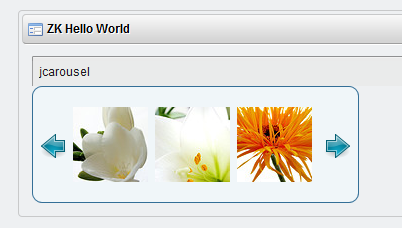
5)  And its done...Deploy it and You will see below screen.....:D

You can use this technique for creating different elements dynamically like for List elements You could use this tweak ....;) GOOD DAY


Wednesday, 11 December 2013

Liferay6.1 + Jboss 7.1 + Oracle as datasource

Hi guys,

I have realized that many of us find difficulties while configuring oracle as data source with liferay bundle.

So Today we gonna see that lets get started...

1) Take Liferay+jboss bundle and extract it you will get below folder structure after extraction.

2) create file portal-ext.properties and add below property in that and put this file in liferay-portal home means in the extracted folder.
                    jdbc.default.jndi.name=java:/stclportal
3)Now download oracle jar (etc ojdbc6.jar)
4) Goto liferay-portal\jboss-7.1.1\modules\com and create one folder named "oracle" in that folder create one folder named "ojdbc6" and in that folder create one another folder named "main" at last you have folder structure like shown below:
5) In folder named "main" put downloaded ojdbc6.jar file.
6)In the same folder named "main" create another file called module.xml as shown in figure and put below content in it.

 <?xml version="1.0" encoding="UTF-8"?>  
         <module xmlns="urn:jboss:module:1.0" name="com.oracle.ojdbc6">  
              <resources>  
                   <resource-root path="ojdbc6.jar"/>  
              </resources>  
              <dependencies>  
                   <module name="javax.api"/>  
                   <module name="javax.transaction.api"/>  
              </dependencies>  
         </module>  

7) Now goto liferay-portal\jboss-7.1.1\standalone\configuration and open standalone.xml and replace the <datasources> element with below code:


  <datasources>  
         <datasource jndi-name="java:/stclportal" pool-name="OracleDS" enabled="true" use-java-context="true">  
           <connection-url>jdbc:oracle:thin:@localhost:1521:orcl</connection-url>  
           <driver>h1</driver>  
           <security>  
             <user-name>liferay</user-name>  
             <password>XXXXXX</password>  
           </security>  
         </datasource>  
         <drivers>  
           <driver name="h1" module="com.oracle.ojdbc6">  
             <xa-datasource-class>oracle.jdbc.OracleDriver</xa-datasource-class>  
           </driver>  
         </drivers>  
       </datasources>  

Here please note that the database name is similar to username if you are providing "liferay" as username then create "liferay" named database in oracle.
And itsss done...:)
Other things are same for deployment and all that...
Thanks

Saturday, 9 November 2013

Java + Apache Derby Database(Embedded Version)

So as many people want to know that How Can We Create JAVA Application which can store data and which can be run on any other computer with JRE without any database configuration once you make it as an executable jar.

Yes, Here I am talking about embedded database with java application.
I am going to use here Derby(Embedded version) very famous database introduced by Apache.

You can find documentation of derby here:Apache Derby

Today we are going to connect pretty simple javaCode with embedded derby database manually with Eclipse so that you can use this code in your any other JAVA application.

I have created one table in embedded derby database inserted some values in that and retrieve it on console.

1) Create Java project.

Java+Embedded Derby

2)Create one java class and add below code in it.As shown in figure.

 package com.demo;  
 import java.sql.Connection;  
 import java.sql.DriverManager;  
 import java.sql.ResultSet;  
 import java.sql.SQLException;  
 import java.sql.Statement;  
 import java.sql.ResultSetMetaData;  
 public class Restaurants  
 {  
   private static String dbURL = "jdbc:derby:myDB;create=true;";  
   private static String tableName = "restaurants";  
   // jdbc Connection  
   private static Connection conn = null;  
   private static Statement stmt = null;  
   public static void main(String[] args)  
   {  
     createConnection();  
     insertRestaurants(5, "LaVals", "Berkeley");  
     selectRestaurants();  
     shutdown();  
   }  
   private static void createConnection()  
   {  
     try  
     {  
       Class.forName("org.apache.derby.jdbc.EmbeddedDriver").newInstance();  
       //Get a connection  
       conn = DriverManager.getConnection(dbURL);   
     }  
     catch (Exception except)  
     {  
       except.printStackTrace();  
     }  
   }  
   private static void insertRestaurants(int id, String restName, String cityName)  
   {  
     try  
     {  
       stmt = conn.createStatement();  
       String sql = "CREATE TABLE RESTAURANTS " +  
           "(id INTEGER not NULL, " +  
           " restName VARCHAR(255), " +   
           " cityName VARCHAR(255), " +   
           " PRIMARY KEY ( id ))";   
       stmt.executeUpdate(sql);  
       stmt.execute("insert into " + tableName + " values (" +  
           id + ",'" + restName + "','" + cityName +"')");  
       stmt.close();  
     }  
     catch (SQLException sqlExcept)  
     {  
       sqlExcept.printStackTrace();  
     }  
   }  
   private static void selectRestaurants()  
   {  
     try  
     {  
       stmt = conn.createStatement();  
       ResultSet results = stmt.executeQuery("select * from " + tableName);  
       ResultSetMetaData rsmd = results.getMetaData();  
       int numberCols = rsmd.getColumnCount();  
       for (int i=1; i<=numberCols; i++)  
       {  
         //print Column Names  
         System.out.print(rsmd.getColumnLabel(i)+"\t\t");   
       }  
       System.out.println("\n-------------------------------------------------");  
       while(results.next())  
       {  
         int id = results.getInt(1);  
         String restName = results.getString(2);  
         String cityName = results.getString(3);  
         System.out.println(id + "\t\t" + restName + "\t\t" + cityName);  
       }  
       results.close();  
       stmt.close();  
     }  
     catch (SQLException sqlExcept)  
     {  
       sqlExcept.printStackTrace();  
     }  
   }  
   private static void shutdown()  
   {  
     try  
     {  
       if (stmt != null)  
       {  
         stmt.close();  
       }  
       if (conn != null)  
       {  
         DriverManager.getConnection(dbURL + ";shutdown=true");  
         conn.close();  
       }        
     }  
     catch (SQLException sqlExcept)  
     {  
     }  
   }  
 }  

In this code please note  Class.forName("org.apache.derby.jdbc.EmbeddedDriver").newInstance();    as well as  private static String dbURL = "jdbc:derby:myDB;create=true;";  
Which are specific to Embedded derby database if you want to use standalone version of the database then you have to change these lines accordingly.
You can find best information here:Derby dburl and driverstring

3)Put the derby.jar in lib as shown in figure.
You can download derby jar from the Apache derby site that I gave before and please note that for Embedded derby you have to download specific jar.Otherwise you could find ClassNotFoundException :p

And Your Done.:)
Run the code and you will get output on console.

Thanks.GOOD DAY


Thursday, 9 May 2013

JCarousal in Zk+Liferay portlet

Now lets make JCarousal in our zk Liferay portlet...


I have use refrence of this site to make this Carousal.You can download all the necessary js and css from this site.
Lets start step by step...

1)Download necessary files as well as the images of next and previous button from that site you can use firebug also to download those stuff. 

2)Download  jquery.jcarousel.min.js and jQuery.js and put these files in docroot/js folder.

3) Update liferay-portlet.xml as given below:


 <?xml version="1.0"?>  
 <!DOCTYPE liferay-portlet-app PUBLIC "-//Liferay//DTD Portlet Application 6.1.0//EN" "http://www.liferay.com/dtd/liferay-portlet-app_6_1_0.dtd">  
   <liferay-portlet-app>   
     <portlet>   
       <portlet-name>zk-hello-world</portlet-name>   
       <icon>/icon.png</icon>   
       <instanceable>false</instanceable>   
       <header-portlet-css>/css/main.css</header-portlet-css>   
       <header-portlet-javascript>/zkau/web/js/zk.wpd</header-portlet-javascript>   
       <footer-portlet-javascript>/js/main.js</footer-portlet-javascript>   
       <footer-portlet-javascript>/js/jquery-1.8.3.min.js</footer-portlet-javascript>   
       <footer-portlet-javascript>/js/jquery.jcarousel.min.js</footer-portlet-javascript>   
       <css-class-wrapper>zk-hello-world-portlet</css-class-wrapper>  
     </portlet>   
     <role-mapper>   
       <role-name>administrator</role-name>   
       <role-link>Administrator</role-link>   
     </role-mapper>   
     <role-mapper>   
       <role-name>guest</role-name>   
       <role-link>Guest</role-link>   
     </role-mapper>   
     <role-mapper>   
       <role-name>power-user</role-name>   
       <role-link>Power User</role-link>   
     </role-mapper>   
     <role-mapper>   
       <role-name>user</role-name>   
       <role-link>User</role-link>   
     </role-mapper>   
   </liferay-portlet-app>  

4)Add The content of the skin.css to docroot/css/main.css file.

In that we have to change just each  url of the images like given below:


  just check the format of the url /{portlet-name}/images/{name of the image}

5) You have to download that images named next-horizontal.png and prev-horizontal.png likewise from  the above site and put those images in docroot/images folder.

6) Update the view.zul as given below:


 <?taglib uri="http://www.zkoss.org/dsp/web/core" prefix="c" ?>  
 <zk xmlns:html="http://www.w3.org/1999/xhtml">  
 <window title="jcarousel" id="window" apply="com.liferay.zk.controller.ZkController">  
 <div class=" jcarousel-skin-tango"><div class="jcarousel-container jcarousel-container-horizontal" style="position: relative; display: block;"><div class="jcarousel-clip jcarousel-clip-horizontal" style="position: relative;">  
 <html:ul class="jcarousel-list jcarousel-list-horizontal" id="mycarousel" style="overflow: hidden; position: relative; top: 0px; margin: 0px; padding: 0px; left: 0px; width: 950px;">  
   <html:li class="jcarousel-item jcarousel-item-horizontal jcarousel-item-1 jcarousel-item-1-horizontal" style="float: left; list-style: none outside none;" jcarouselindex="1"><image width="75" height="75" src="http://static.flickr.com/66/199481236_dc98b5abb3_s.jpg"></image></html:li>  
   <html:li class="jcarousel-item jcarousel-item-horizontal jcarousel-item-2 jcarousel-item-2-horizontal" style="float: left; list-style: none outside none;" jcarouselindex="2"><image width="75" height="75" src="http://static.flickr.com/75/199481072_b4a0d09597_s.jpg"></image></html:li>  
   <html:li class="jcarousel-item jcarousel-item-horizontal jcarousel-item-3 jcarousel-item-3-horizontal" style="float: left; list-style: none outside none;" jcarouselindex="3"><image width="75" height="75" src="http://static.flickr.com/57/199481087_33ae73a8de_s.jpg"></image></html:li>  
   <html:li class="jcarousel-item jcarousel-item-horizontal jcarousel-item-4 jcarousel-item-4-horizontal" style="float: left; list-style: none outside none;" jcarouselindex="4"><image width="75" height="75" src="http://static.flickr.com/77/199481108_4359e6b971_s.jpg"></image></html:li>  
   <html:li class="jcarousel-item jcarousel-item-horizontal jcarousel-item-5 jcarousel-item-5-horizontal" style="float: left; list-style: none outside none;" jcarouselindex="5"><image width="75" height="75" src="http://static.flickr.com/58/199481143_3c148d9dd3_s.jpg"></image></html:li>  
   <html:li class="jcarousel-item jcarousel-item-horizontal jcarousel-item-6 jcarousel-item-6-horizontal" style="float: left; list-style: none outside none;" jcarouselindex="6"><image width="75" height="75" src="http://static.flickr.com/72/199481203_ad4cdcf109_s.jpg"></image></html:li>  
   <html:li class="jcarousel-item jcarousel-item-horizontal jcarousel-item-7 jcarousel-item-7-horizontal" style="float: left; list-style: none outside none;" jcarouselindex="7"><image width="75" height="75" src="http://static.flickr.com/58/199481218_264ce20da0_s.jpg"></image></html:li>  
   <html:li class="jcarousel-item jcarousel-item-horizontal jcarousel-item-8 jcarousel-item-8-horizontal" style="float: left; list-style: none outside none;" jcarouselindex="8"><image width="75" height="75" src="http://static.flickr.com/69/199481255_fdfe885f87_s.jpg"></image></html:li>  
   <html:li class="jcarousel-item jcarousel-item-horizontal jcarousel-item-9 jcarousel-item-9-horizontal" style="float: left; list-style: none outside none;" jcarouselindex="9"><image width="75" height="75" src="http://static.flickr.com/60/199480111_87d4cb3e38_s.jpg"></image></html:li>  
   <html:li class="jcarousel-item jcarousel-item-horizontal jcarousel-item-10 jcarousel-item-10-horizontal" style="float: left; list-style: none outside none;" jcarouselindex="10"><image width="75" height="75" src="http://static.flickr.com/70/229228324_08223b70fa_s.jpg"></image></html:li>  
  </html:ul>  
  </div><div class="jcarousel-prev jcarousel-prev-horizontal jcarousel-prev-disabled jcarousel-prev-disabled-horizontal" style="display: block;"></div>  
  <div class="jcarousel-next jcarousel-next-horizontal" style="display: block;"></div></div>  
  </div>  
 </window>  
 </zk>  

7)Update the content of the ZkController.java as given below:

 package com.liferay.zk.controller;  
 import org.zkoss.zk.ui.select.SelectorComposer;  
 import org.zkoss.zk.ui.util.Clients;  
 import org.zkoss.zul.Window;  
 public class ZkController extends SelectorComposer<Window> {  
      private static final long serialVersionUID = 1L;  
 @Override  
 public void doAfterCompose(Window comp) throws Exception {  
      // TODO Auto-generated method stub  
      super.doAfterCompose(comp);  
      //You can change the visible app by java controller you can handle all the carousal function with this below line  
      Clients.evalJavaScript("jQuery('#mycarousel').jcarousel({ scroll: 1,visible: 3});");  
 }  
 }  

8) Project structure:

JCarousal Project structure for zk+liferay portlet
Now you can also create jCarousal dynamically from controller side by adding li element in ul element and apply the jCarousal function to ul element by its id.We will See it in next post....:D
And its done :) deploy it and there you go...GOOD DAY